Changelog

Follow new updates and improvements to ThoughtFlow.

August 3rd, 2026

Hi there ,

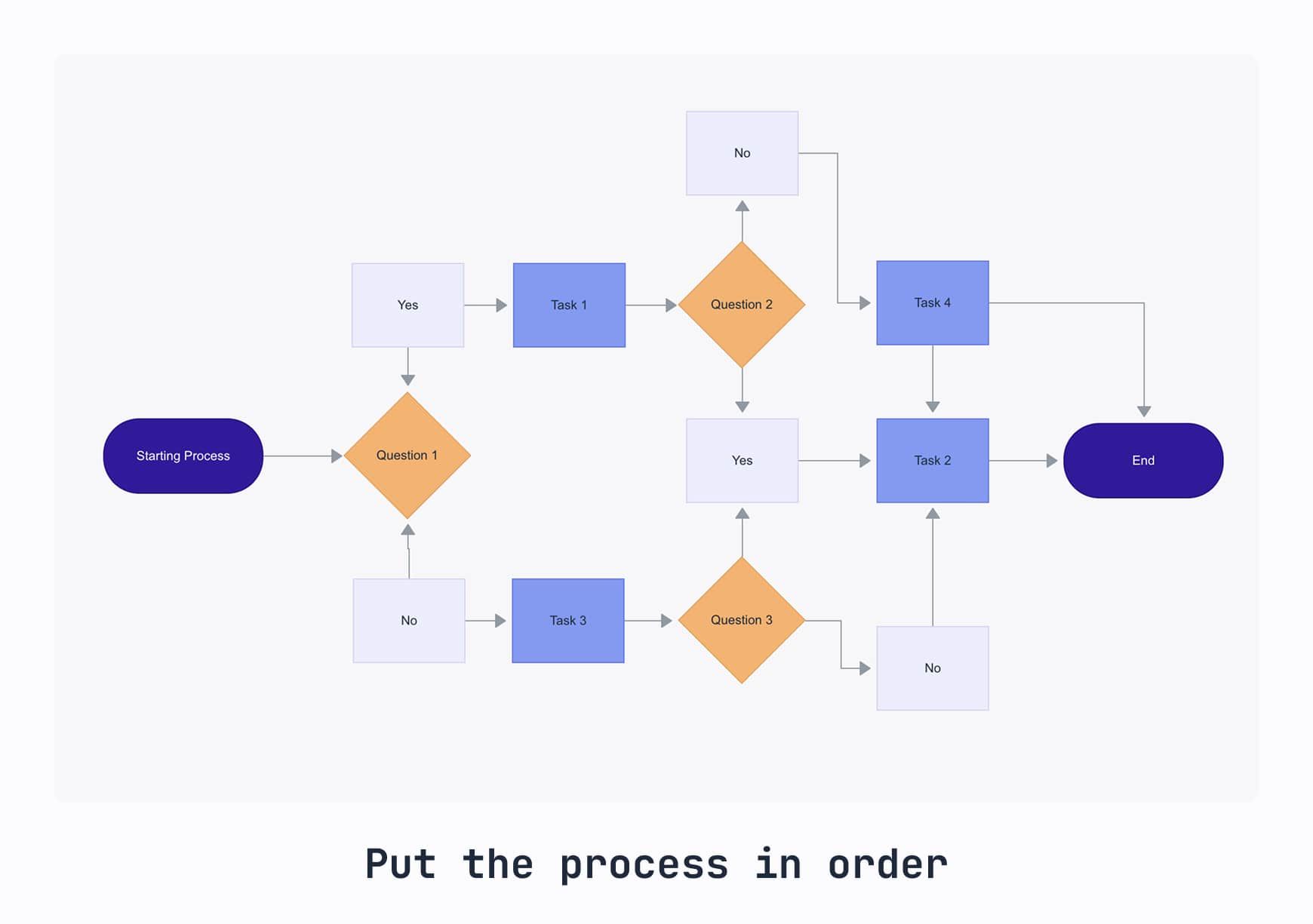
Quick question: if you had to hand your workflow to a new hire tomorrow, could you write down the actual rules, not just the board?

Most teams can't. The process lives in someone's head, half-enforced by manual reminders, and every board clone drifts a little further from how work is actually supposed to happen.

This is probably useful if you're the one who owns how work moves across your team, not just working inside one board. If that's not you, feel free to forward this to whoever is.

We're building a process governance layer for monday, called Pipelines, and before we finish it we want to make sure it actually fits how real teams like yours operate. So we're offering free process mapping sessions to a small group of Multi Board Kanban customers.

In 45 minutes we'll map your process together: stages, gates, the fields that have to be filled before something moves forward. You walk away with a clear picture of your own process, which most teams don't have written down anywhere. If we can't get through the whole thing in one sitting and you find it useful, we can pick it up in a follow-up session.

As a thank you, you'll be first in line for early access to Pipelines once it's ready.

We're only doing this with a handful of teams, since it's hands-on. Grab a time here:Β 

https://calendly.com/thought-flow/process-mapping-workshop

Warm Regards,
Kranthi
Founder - ThoughtFlow apps for Monday.com

July 8th, 2026

Setting up a multi-board Kanban shouldn't feel like a chore. This update tackles two friction points that come up the moment you start working across multiple boards: getting them aligned, and navigating your data once they are.


Board Standardization

What's new

When you combine multiple boards into a single Kanban view, every board needs to share the same anchor field, stage statuses, and card property fields. If a board is missing any of those, you used to have to find and fix each one manually.

Board Standardization scans all boards in your view, highlights exactly what's missing and where, and lets you fix everything with one click. Fix a single field, fix one board, or fix all boards at once.

You'll also notice a new indicator in the Kanban toolbar: if there are any structural inconsistencies between your boards and your Kanban configuration, the toolbar highlights them so you're never left guessing why something looks off.

Why it matters

You've got your Kanban working for one workflow, and now you want to pull in boards from other projects, other teams, or other clients. Those boards weren't built with the same conventions. Maybe someone used different field names, or a status field is missing entirely. Getting everything aligned was tedious enough to make people hesitate before adding new boards. Now you can pull in any board and get it production-ready in seconds.


Saved Filters

What's new

You can now save any combination of filters with a name and come back to it later. Set your criteria, hit save, give it a name, and that filter is available anytime. Switch between saved filters without losing anything. Saved filters are per view and available to everyone who uses that view.

Why it matters

Every time you wanted a different slice of your data, you'd lose whatever filters you had set up. Want to check all items due next week, then switch to see everything completed? That meant rebuilding from scratch. Saved filters let your whole team move between different views of the same board set without the friction.


Kranthi from ThoughtFlow

P.S. We're researching how teams handle automations across multiple boards. If you've set up automations on any of the boards in your Kanban views, I'd love to hear how that's working for you. Just reply "Automations" and I'll follow up.

July 3rd, 2026

What's new

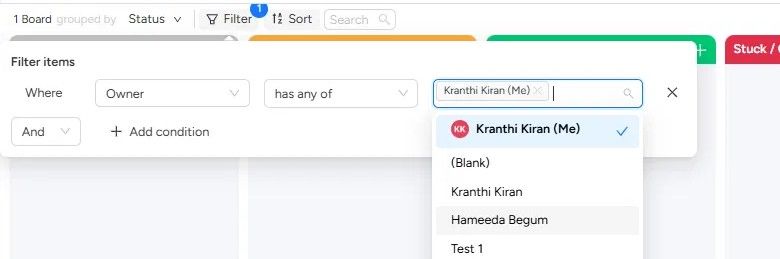
When you filter by a people column (like Owner or Assignee), you'll now see a "Me" option right at the top of the list. Pick it, and the view instantly shows only items assigned to you.

The filter is dynamic: it resolves to whoever is viewing. So on a shared kanban, every teammate can apply the same filter and see their own work. No scrolling through a long list of names to find yourself.

Why it matters

If your team shares a kanban view, you've probably hit this: someone filters the view to their name, and the next person who opens it sees an empty board. They think something's broken, or they waste time resetting the filter. Some teams worked around this by creating separate views for each person, but that means keeping all of them consistent whenever the setup changes. It doesn't scale.

The "Me" filter fixes this at the root. Because it resolves to whoever is looking, the whole team can use the same view with the same filter applied. One person sees their items, another sees theirs. No collisions, no confusion.

That also means this is a view worth bookmarking. Set up your kanban across your boards, clients, or projects, apply the "Me" filter once, and you have a single place to see what's on your plate. Every time you open it, it's already scoped to you.

How to use it

  1. Open your kanban view.

  2. Click Filter in the toolbar.

  3. Set the condition to a people column (Owner, Person, etc.) and choose "has any of."

  4. You'll see your name with (Me) next to it at the top of the list. Select it.

  5. The view now shows only items assigned to you.

Works on any people column, across any boards in the view.


Something we're exploring: Multi Board Automations

One thing we keep hearing from teams running work across multiple boards: automations break when you duplicate them. You set up a recipe on one board, copy it to five others, and within a month they've all drifted. Someone tweaks the trigger on board 3. Someone forgets to add the recipe to board 6. Nobody notices until something falls through.

We're exploring what it would look like to manage automations across boards in one place.

If that's something you'd use, just reply with "Automation" and we'll let you know when it's live.

Kranthi from ThoughtFlow

June 19th, 2026

Drag to reorder, right inside your Kanban list

Hi there,

This is one of the most requested things we've heard, and honestly it's probably one of the reasons some of you tried Multi Board Kanban but never made it a regular part of your workflow. You could sort a list, but you couldn't actually prioritize it by hand. That's fixed now.

You can drag cards up and down within a list and set your own order. Most important at the top, not just the latest change at the top.

What's new

Until now, ordering inside a list meant sorting by a column. Numeric values, alphabetical, a priority column, that kind of thing. Useful, but it's still the data deciding the order, not you.

Manual reordering lets you set the order yourself. Drag a card wherever it should sit and it stays there. For anyone doing backlog prioritization, this is the part that was missing. You decide what's at the top, instead of the newest item always winning.

Why it matters

If you plan your week or groom a backlog inside your board, you want the top of the list to mean "do this first," not "this changed most recently." Now it can. Pull the three things that actually matter to the top of each lane and leave them there.

How to turn it on

It's off by default, so you activate it per view:

  1. Open the Sort section of your view, where your existing sort options live.

  2. At the bottom, check Allow manual sorting.

  3. Drag cards to reorder within any list.

A couple of things worth knowing:

  • The checkbox only becomes available when you're on the default sort (last change time, latest first). If you're sorting by another column, switch back to the default and the option will light up.

  • Your manual order is saved to that specific view. Create another view and it starts fresh, and changing the sort settings won't preserve the manual order.

Tell us how it goes

If drag-to-prioritize was the thing you were waiting for, give it a try and just reply to this. We'd love to hear whether it fits how you actually run your backlog, and what you'd want next.

Kranthi from ThoughtFlow

May 25th, 2026

New

My Kanban: everything assigned to you, across every board, in one kanban

Hi there,

We just added a new view to Multi Board Kanban called My Kanban, and it's worth a look even if you haven't opened the app in a while.

It's like your "My Work" in monday, except it's a kanban you can drag, reprioritize, and arrange your own way.

Add it, and everything assigned to you is already there. Nothing to configure to see your own work, no boards to pick. The moment you're added to an item on any board, it shows up here on its own. Open one view in the morning and see what's actually on your plate, across everything.

No board selection. Ever. Unlike a regular Multi Board Kanban view, you don't choose which boards to include. My Kanban just follows your assignments. Nothing to maintain.

How to add it

Open your workspace and go to Add new β†’ More β†’ Installed apps β†’ My Kanban ( beta ).

(Still have Multi Board Kanban installed? It's right there. If you removed it at some point, a quick reinstall puts it back.)

My Kanban shows items from boards updated in the last 30 days, so it stays focused on what's moving right now rather than old, quiet boards.

Why it matters

If you start your day trying to remember which board has the thing that's due, My Kanban gives you one place to open first thing in the morning. And instead of everyone configuring their own setup from scratch, you can standardize it around the roles on your team: same structure for everyone in a role, personalized to each person's work.

Try it, it's free right now

There's nothing to switch on and no limits today. Add the view, and your own work is there in seconds. We're still figuring out pricing, but for now it's free, so this is a good moment to see if it fits how you work.

If something feels off or you have a thought on how it should work, just reply to this email or use the live chat in the app. We read every message, and feedback right now directly shapes what ships next.

And if you'd rather walk us through your setup live, grab a time with me here.

Thanks for being a Multi Board Kanban customer,

Kranthi from ThoughtFlow

April 27th, 2026

Improved

Hi there,

We've shipped a couple of behind-the-scenes improvements that should make your day-to-day with Multi Board Kanban feel quicker; especially if you work with large boards.

What's new

Faster board loads with smart syncing. Instead of refetching everything every time you open a board, Multi Board Kanban now pulls only what's changed since you last looked. The first load still happens once, but every load after that is dramatically lighter. If you've got boards with hundreds of items, you'll feel the difference right away.

Wide boards now load reliably. Previously, boards with more than 15 columns ran into caching limits that slowed things down (and occasionally caused them to hang). We've moved that data to a more robust storage layer on monday's side, so wide boards now load smoothly regardless of how many columns you've got.

Why it matters

If your team lives in big, busy boards with 500+ items, lots of columns, or both; Multi Board Kanban should now feel noticeably snappier in everyday use. No setting to flip, nothing to migrate. It just works better the next time you open the app.

Coming soon: My Kanban. Want early access?

We're putting the finishing touches on My Kanban, a new personal view that automatically surfaces every item assigned to you across all your boards. No setup required. It's designed to be the first thing you open in the morning.

We're looking for a small group of customers to try it before general release and tell us what works (and what doesn't). If you'd like early access, just reply to this email with a quick "I'm in" and we'll get you set up. Your feedback will directly shape what ships.

And of course, if you've got any thoughts on the speed improvements above, or anything else about Multi Board Kanban; we'd love to hear those too. We read every reply.

Thanks for being a Multi Board Kanban customer,

Kranthi from ThoughtFlow